Follow these steps to edit the appearance and controls of your video within the VidSell platform. This guide will take you through the process of uploading a thumbnail, selecting specific options, and managing controls to customize your video effectively.
Step 1: Click the button with the pencil icon.
Click the button that shows a pencil icon to begin editing your video's appearance.

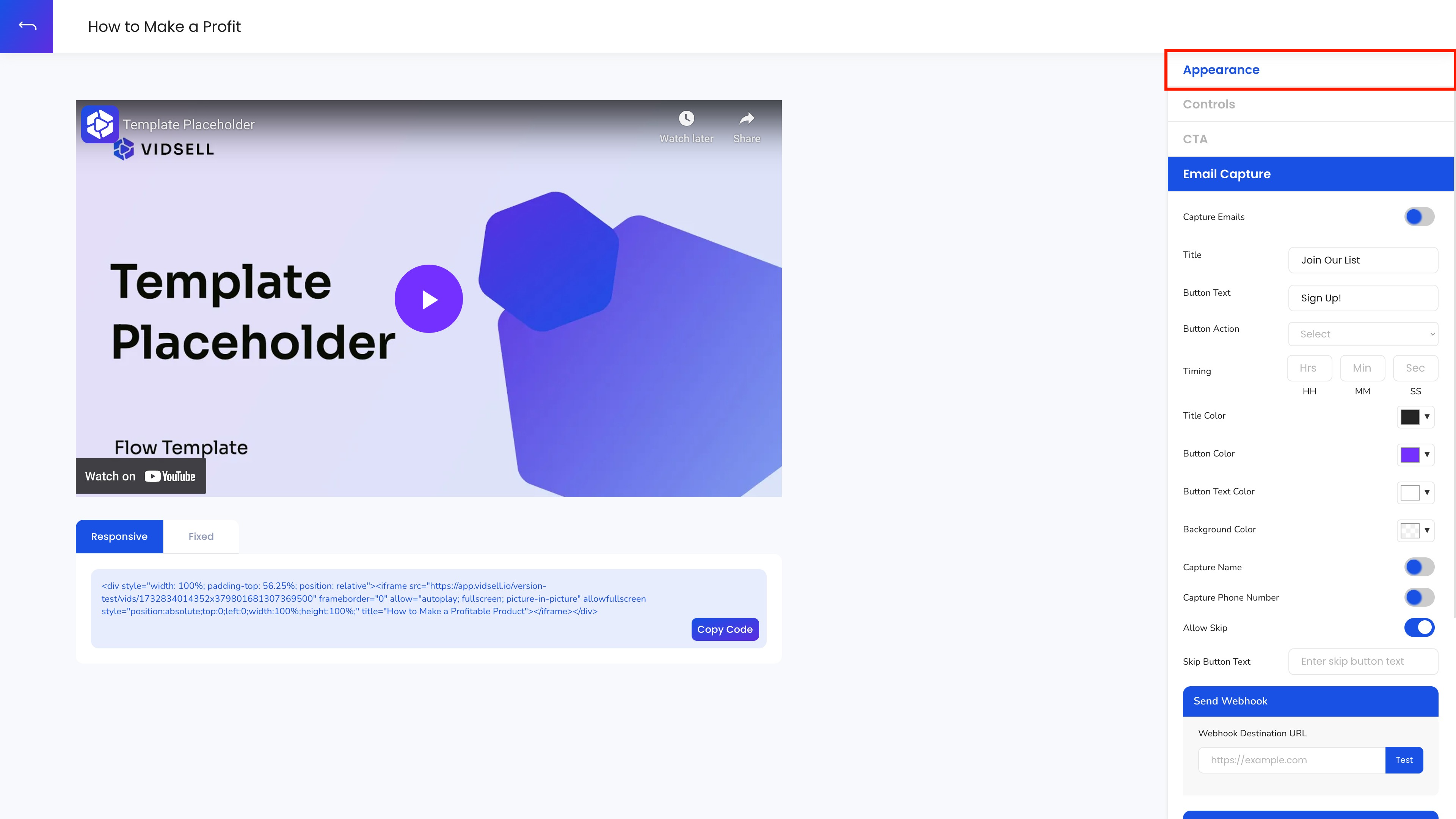
Step 2: Click on the Appearance button.
Click the 'Appearance' button to open the appearance settings for your video.
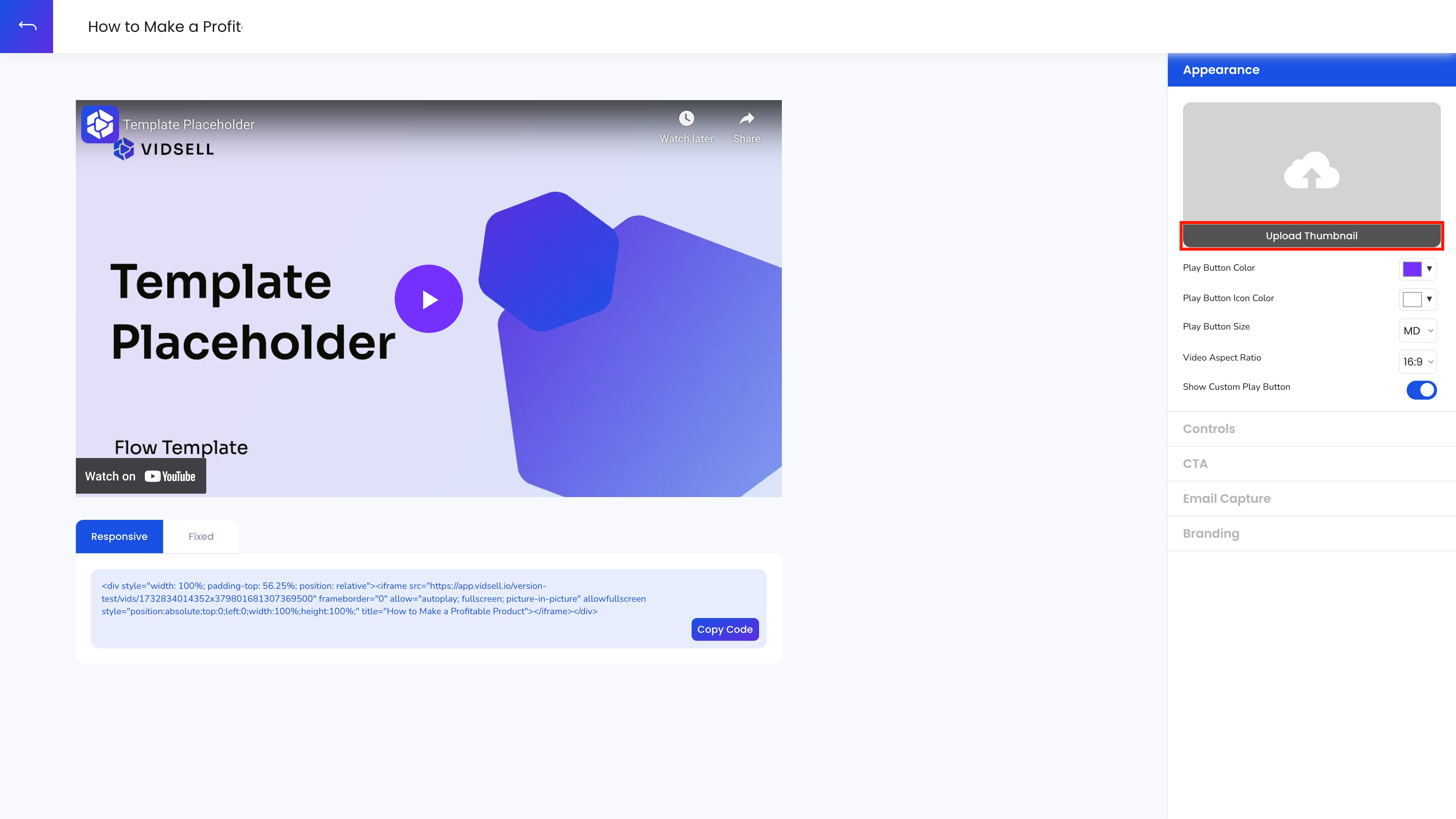
Step 3: Upload a Custom Thumbnail
Click the 'Upload Thumbnail' button to add a custom thumbnail to your video.
Step 4: Select Your Thumbnail
Click on the designated upload area to select a thumbnail image from your device.

Step 5: Click the open button.
Click the 'Open' button to confirm your selection of the thumbnail image.

Step 6: Navigate to cancel.
If needed, navigate to the cancel option to discard any unwanted changes.
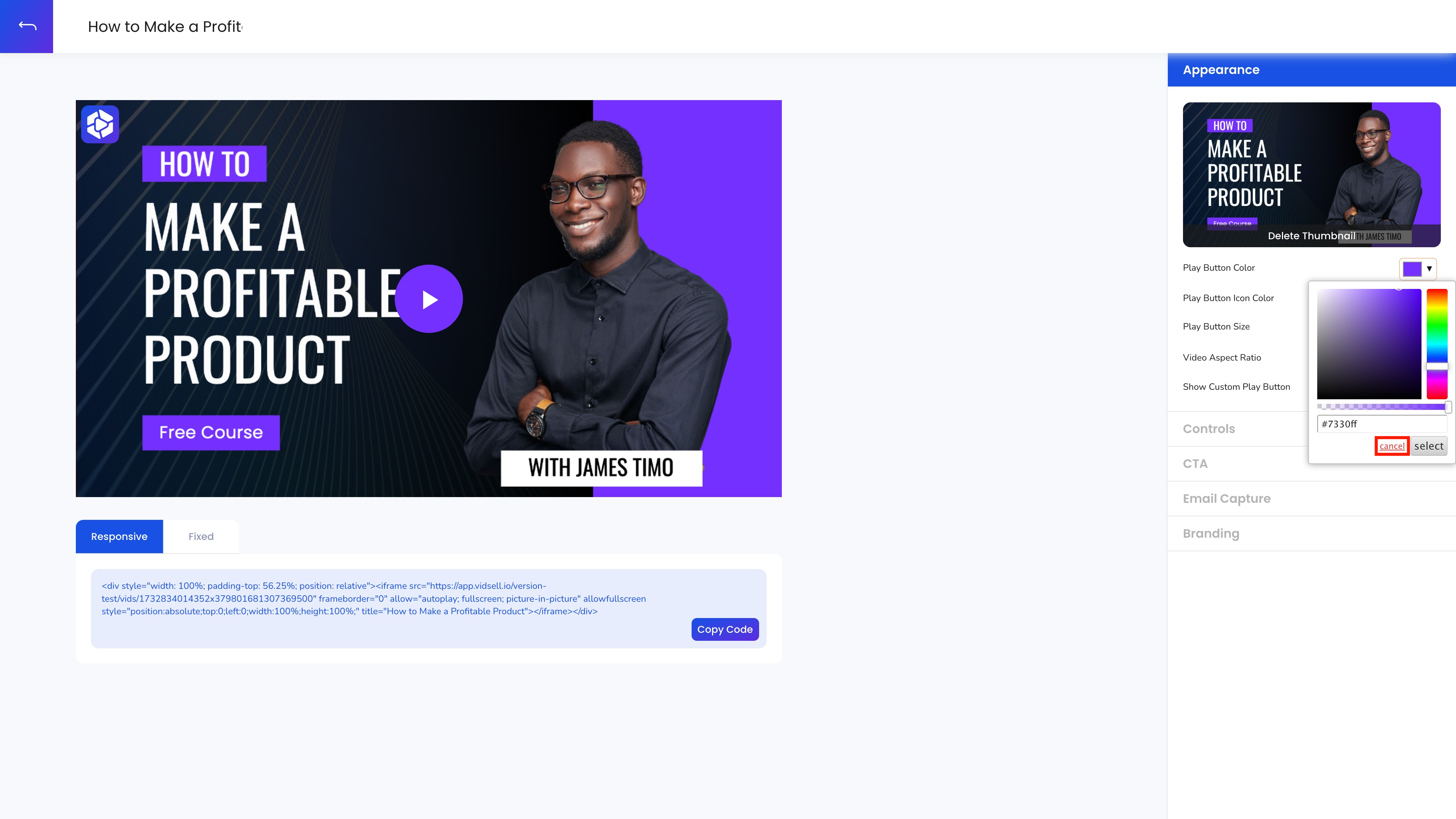
Step 7: Click the confirm button.
Click the 'Confirm' button to confirm your changes.

Step 8: Icon Transparency
Both your play button and icon include the ability to upload custom hex or RGB values with transparency controls.

Step 9: Choose a Play Button Size
From the dropdown or list, select from either SM (Small), MD (Medium), or LG (Large) play button sizes.

Step 10: Choose and Aspect Ratio
Choose between either a 1:1, 16:9, or 4:3 aspect ratios to match your uploaded video. This allows for many different uses where different size videos are optimal.

Step 11: Hide or Show Custom Play Button
Choose to toggle on or off your custom play button. This can be useful for YouTube videos, or other platforms that you do not desire to display a custom button over the platform's existing play button.

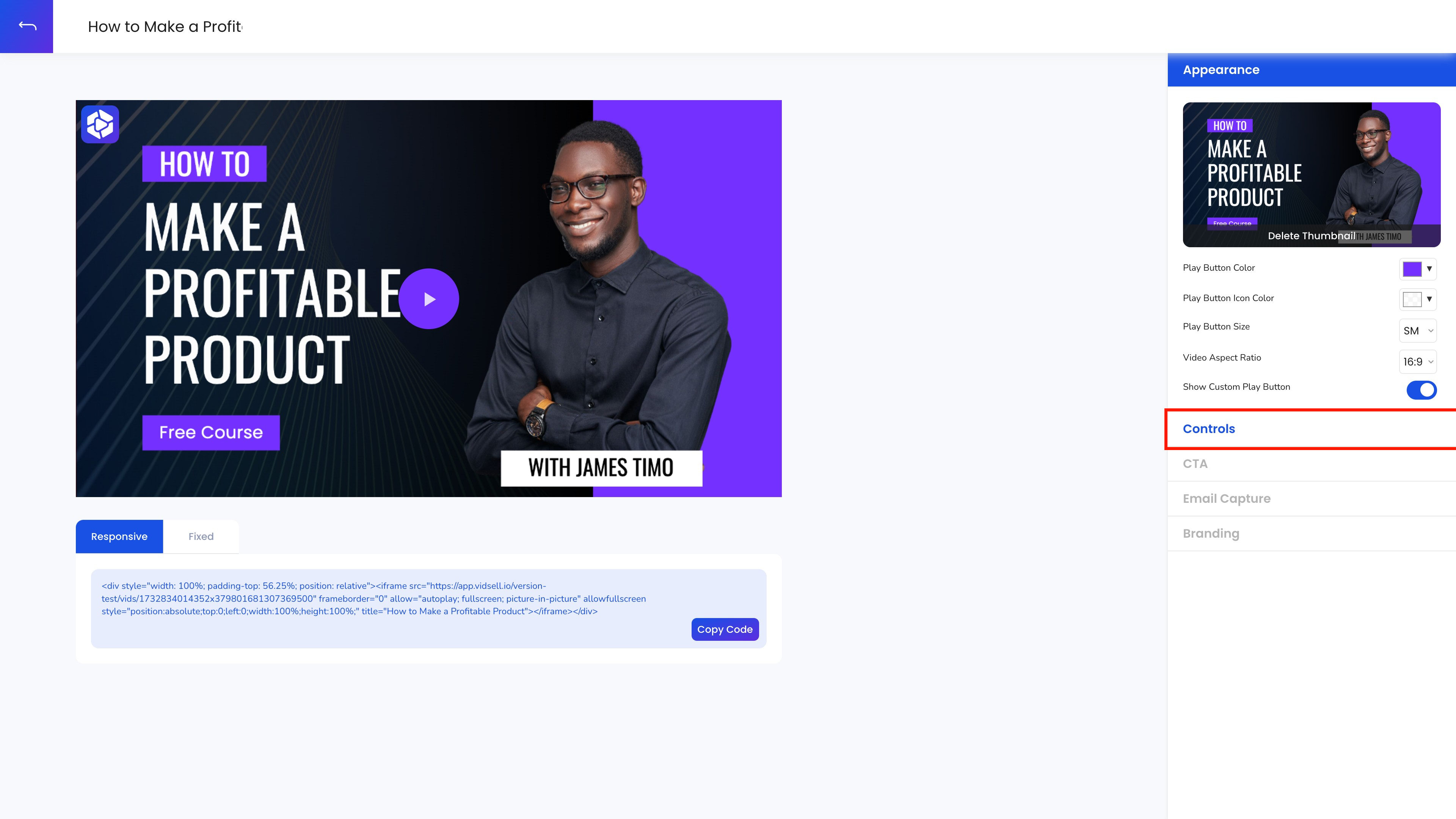
Step 12: Modify Video Controls
Click the 'Controls' button to access the control settings for your video.
Step 13: Auto Play
Choose whether you would like you video to automatically play when loaded, or if your viewer should click your video to play.

Step 18: Mute by Default
Choose whether you would like you video to be automatically muted when loaded, or if your video should immediately begin playing audio.
