Step 1: Invite New Team Members
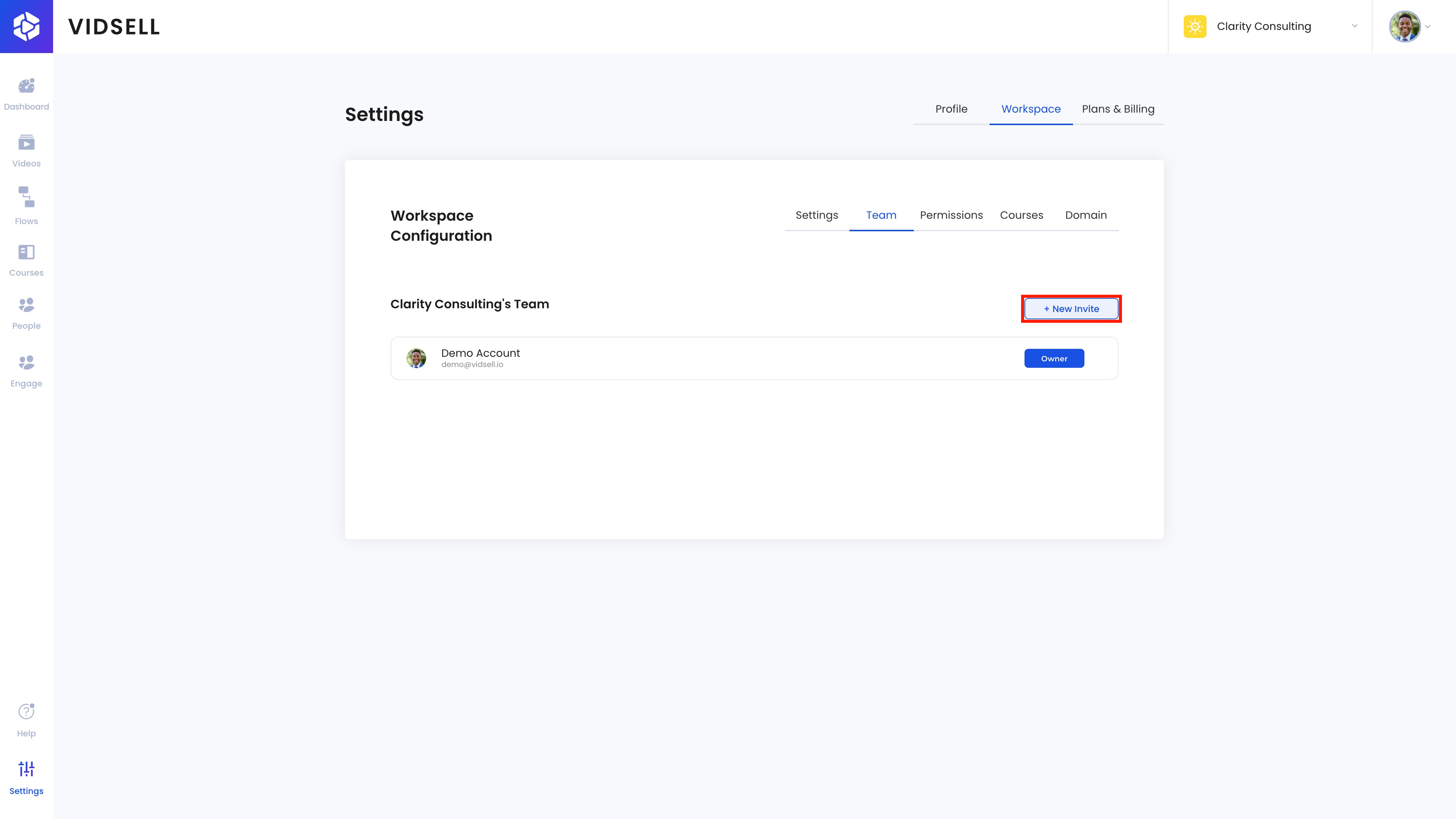
Navigate to the Teams area in VidSell and click on the '+ New Invite' button to start inviting a new user.
Step 2: Enter New User's Email Address
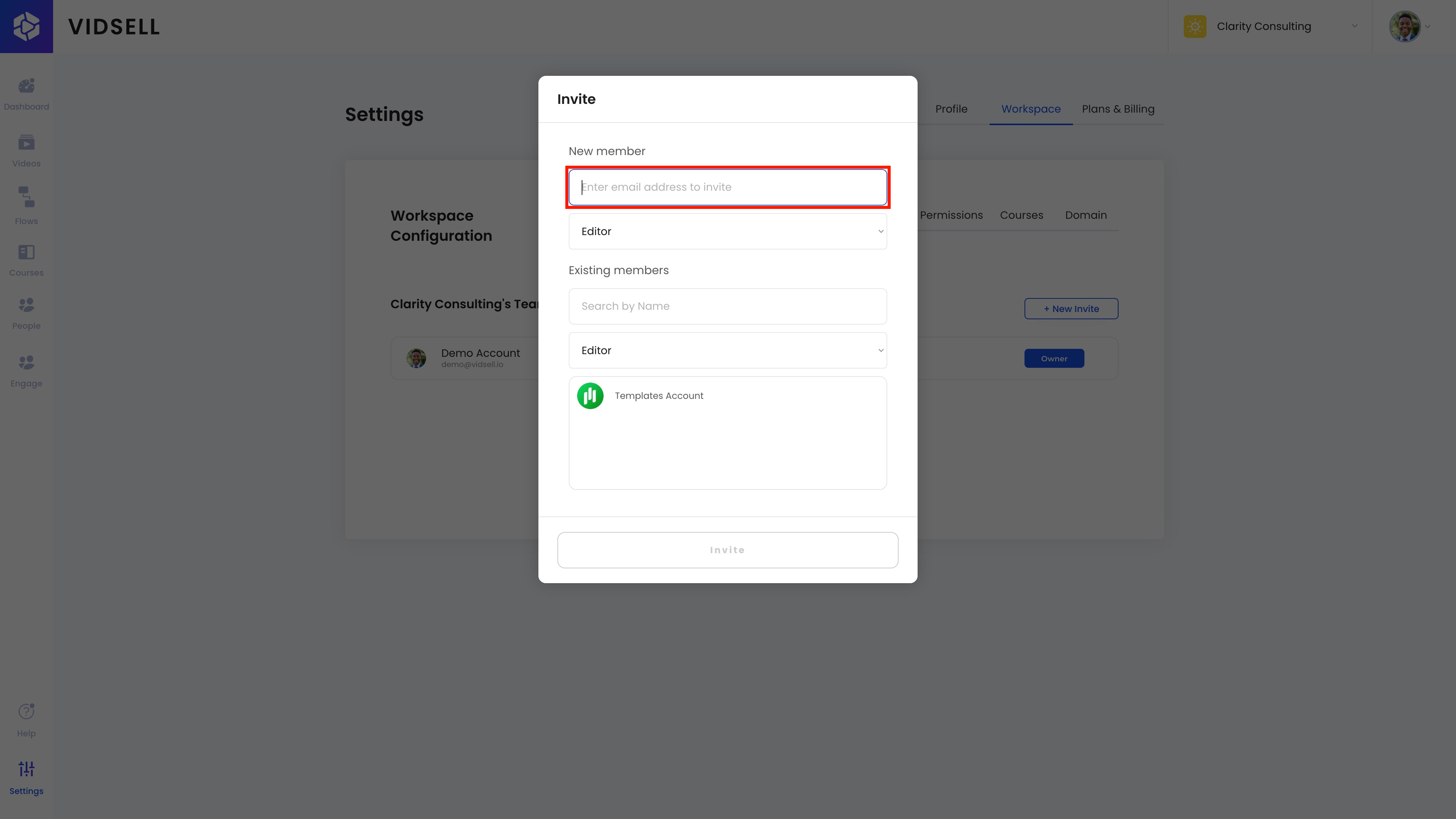
Input the email address of the user you wish to invite in the designated field.
Step 3: Invite New User
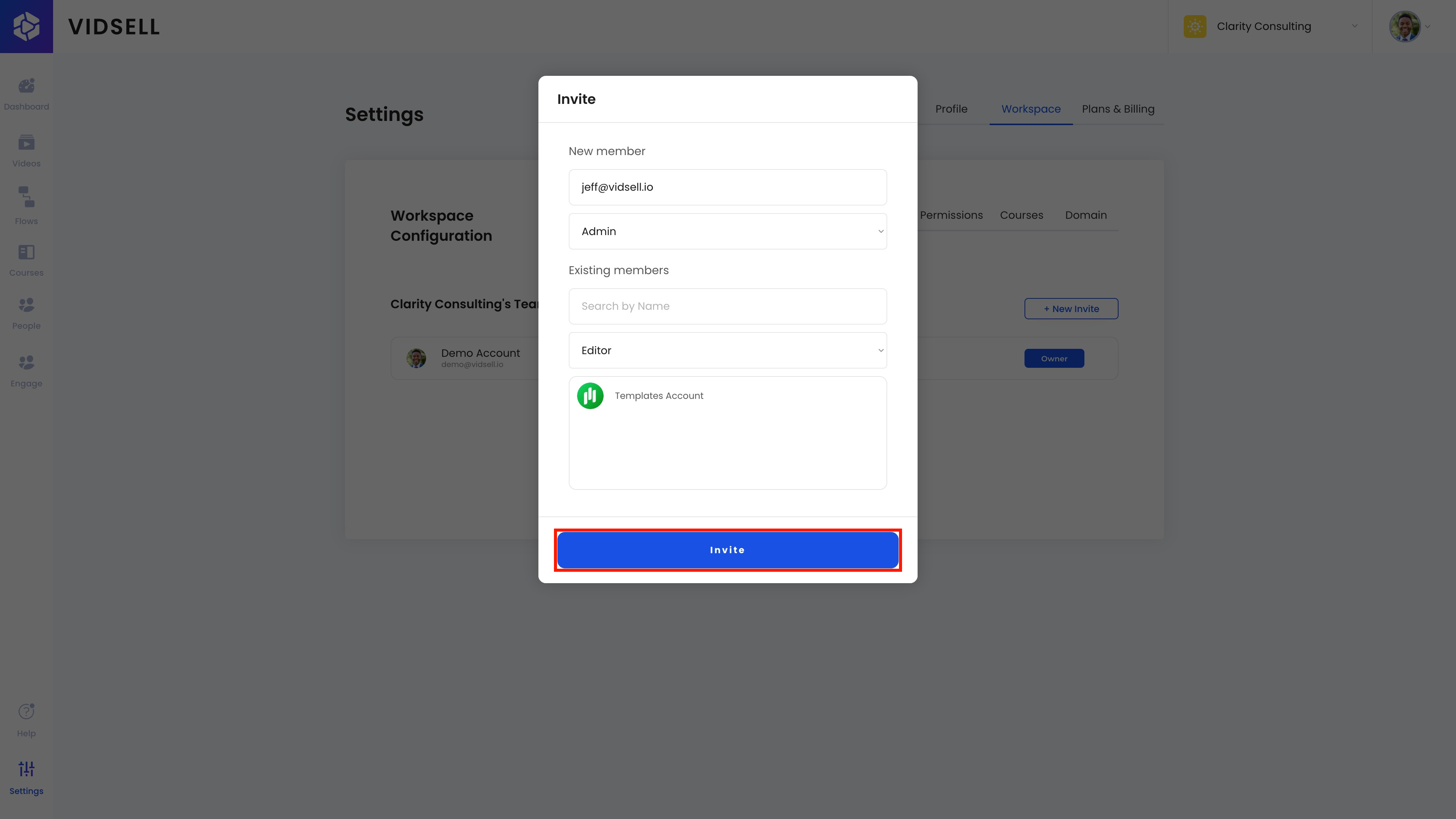
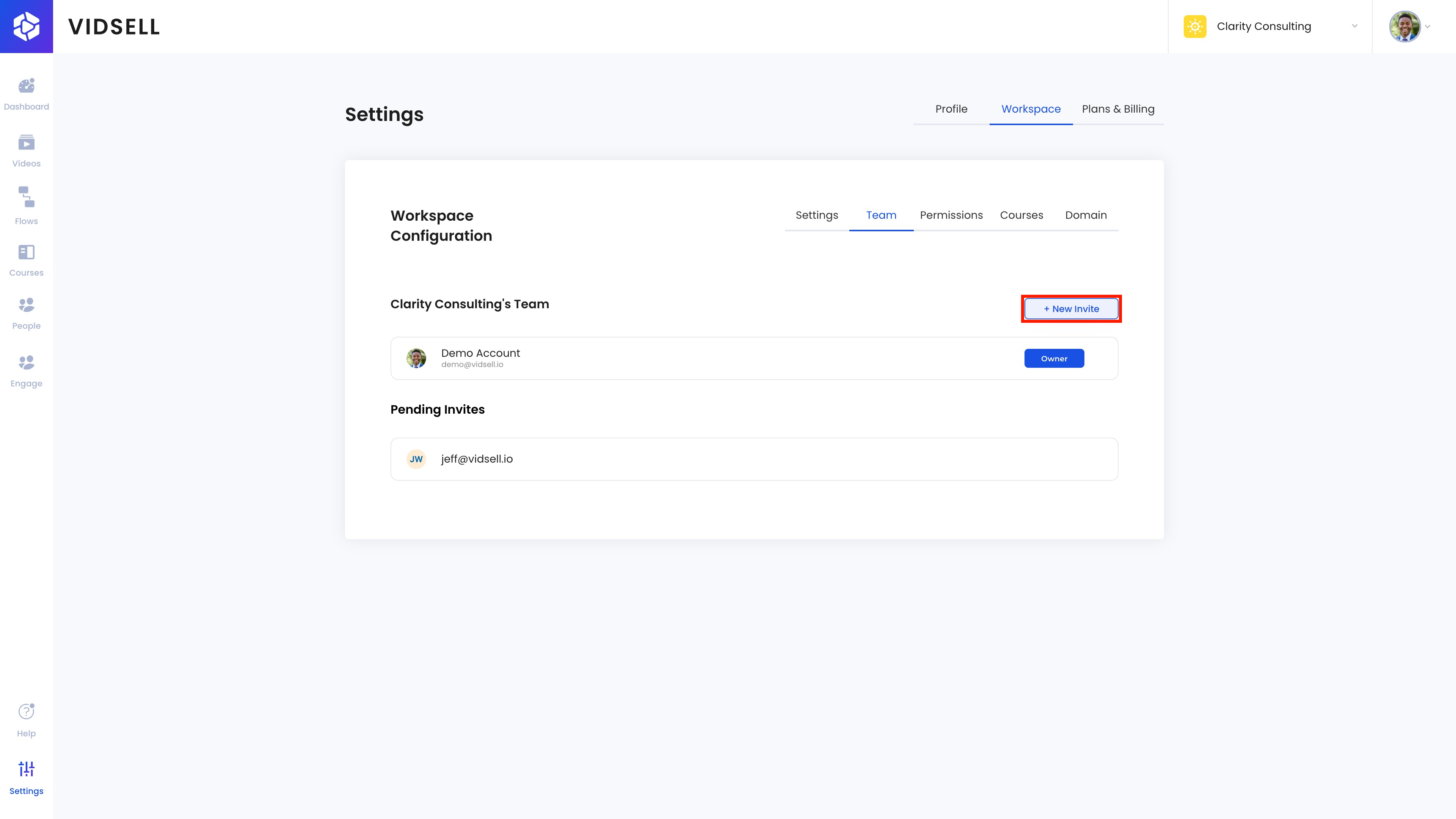
Click the 'Invite' button below to add your new user. From here, your invited user will appear as pending until they accept your invitation.
Step 4: Inviting Existing Users
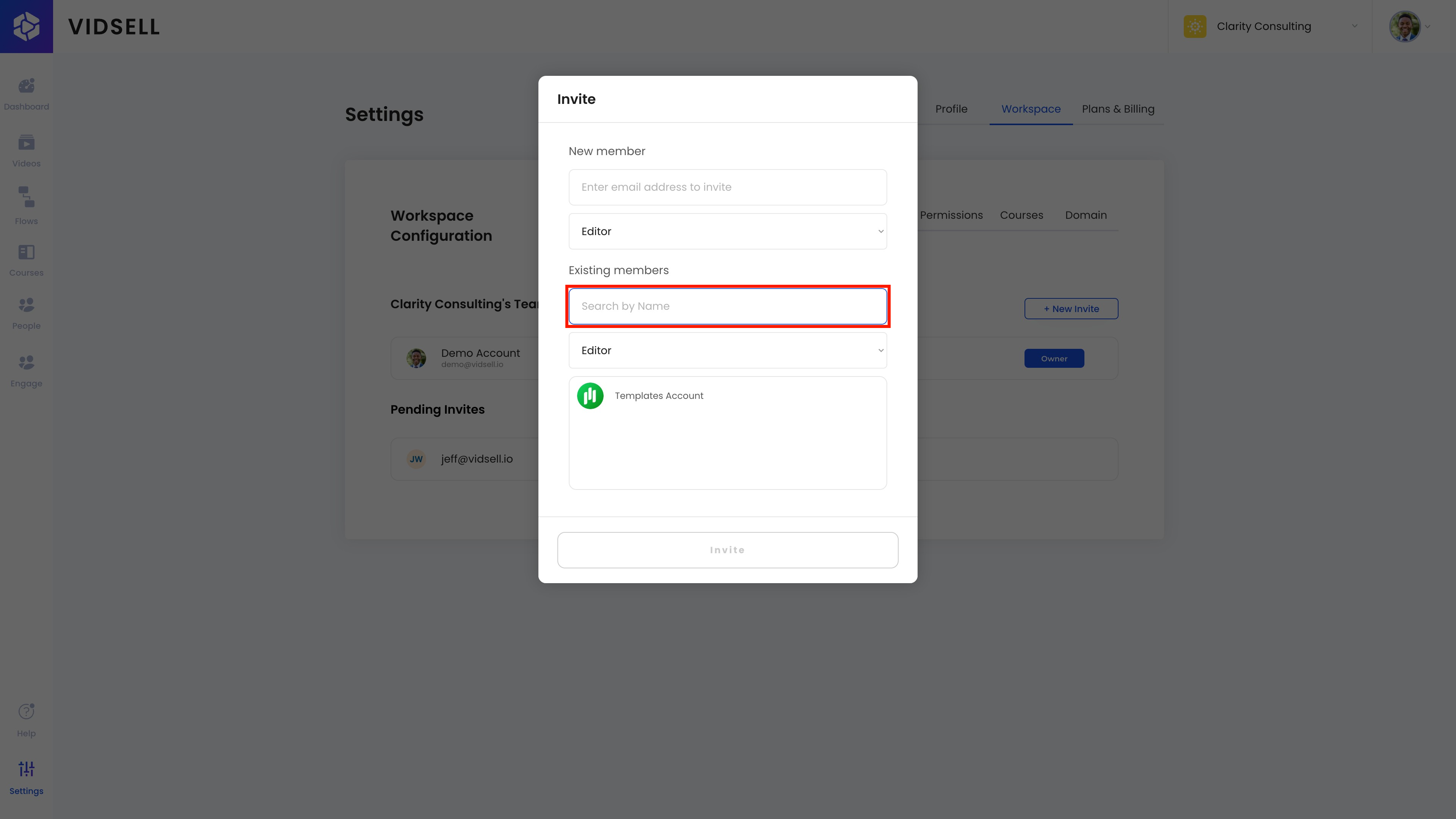
To invite a user that is already collaborating with you in a different workspace, click on the "+ New Invite" button.
Step 5: Choose Existing Members
Begin tying the name of the user that you would like to invite to this workspace.
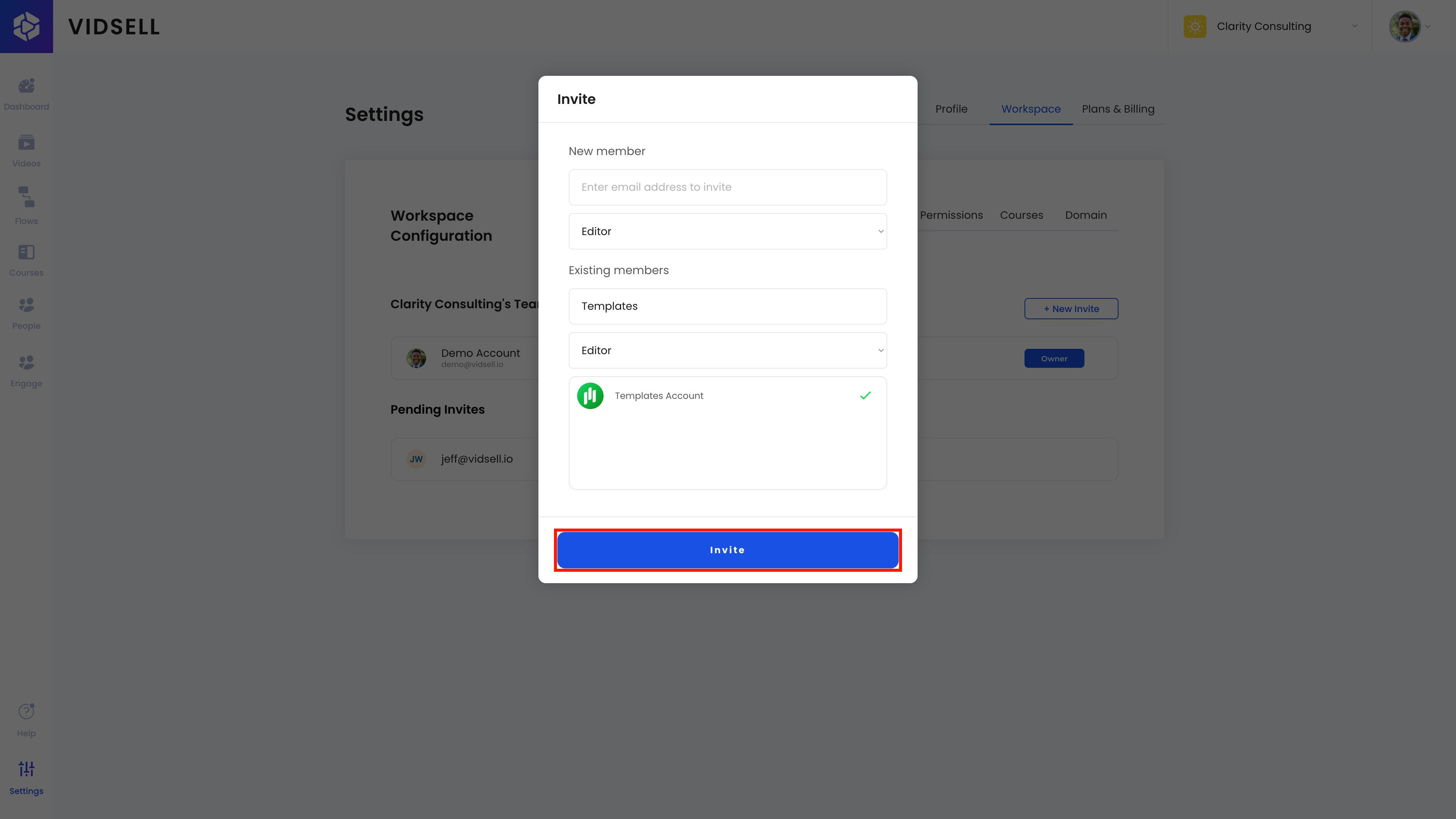
Step 6: Click the Invite Button
Click 'Invite' after entering the existing user's name to send out the invite.
Step 7: Remove Invited Users
To remove invited users from your Pending Invites list, click on the trash can icon next to the name of the person you would like to remove.

Step 8: Manage User Roles
Once your invitee has accepted your invitation, you can manage their permission levels after you have invited them if you desire to change what you have already set. You can choose to assign users either "Admin" or "Editor" permissions inside of your workspace.

Step 9: Remove Added Users
You can also remove users by clicking on the triple dot menu next to their name, and choosing "Remove All Access".
